Accidental hard drive erasure cost Alaska $220,000
Moral of the story: Always back-up your work in at least 2 locations.
http://www.cnn.com/2007/US/03/20/lost.data.ap/index.html?eref=rss_topstories

Moral of the story: Always back-up your work in at least 2 locations.
http://www.cnn.com/2007/US/03/20/lost.data.ap/index.html?eref=rss_topstories
Remember that the printers in the Monty Lab are laser jet (NOT ink jet)
and for cardstock it should be weighted at least 110 LB
Most keyboards and USB hubs operate from power supplied by the USB ports to which they are connected; this does not leave enough power for some brands of flash drive to operate properly. To avoid this, always connect the flash drive to a USB port that is DIRECTLY ON the computer. This means you should not use ones on the monitor (unless the monitor is also the computer), keyboard, or other peripherals. This should allow it to power up properly.
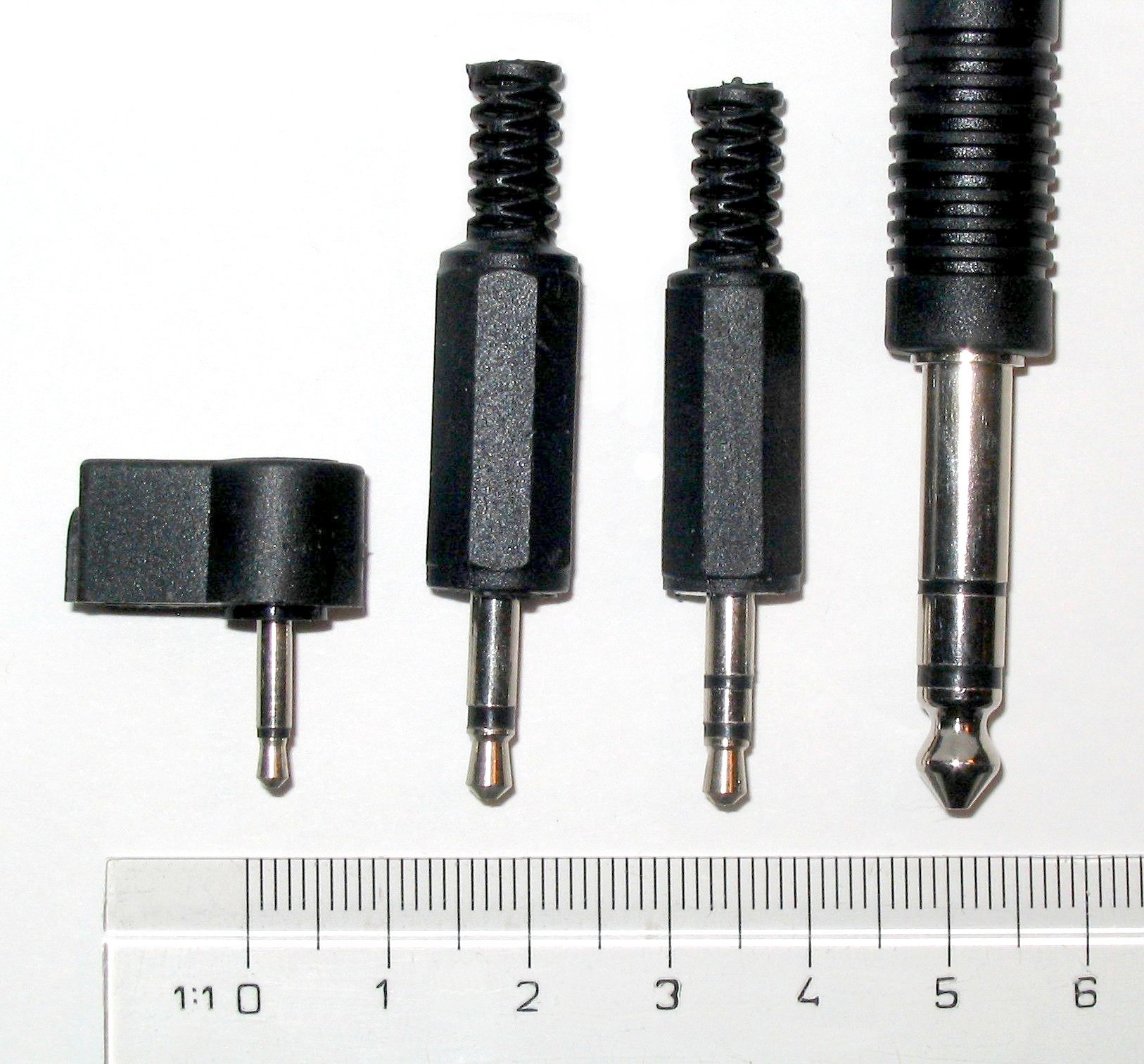 There are various sizes for audio cables. From left to right these are:
- 2.5 mm mono
- 3.5 mm (aka 1/8" or mini) mono and stereo
- 6.3 mm (aka 1/4") stereo
You can tell if it's mono or stereo by the number of rings on the jack: one = mono signal and two = stereo signal.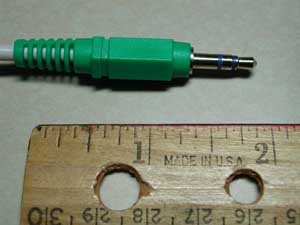 To bring your recorded audio in to the computer, it is necessary that you have a cable with two 1/8" jacks at both ends. This is an analog, not digital connection. It can be used with both cassette tape and mini-disc.
 The jack on left is the 1/8-inch stereo audio input jack, which allows you to connect any audio source directly to the Mac, including a microphone. After you connect, you will need to press play on your tape player. Then press the RECORD button in the Audacity interface, and you will see the audio signal visibly as a track.
The jack on the right is for output only.
Q: Where is the project description and the Janet Cardiff sound file?
A: To find older items on the blog, just do a search or look under the LABELS list on the side bar. Try "schedule", "project 1" or "artists".
Q: Can I convert an MP3 to a WAV so that I can use it in my project?
A: No. You can convert from a larger file (WAV) to a smaller file (MP3), but not the other way around. It's like trying to expand a sweater that shrank in the wash. Doing so is bad practice and just plain silly.
Q+A: How do I attribute my sources from Freesound?
Q: What are other sites where I can find sound clips?
A: Recording your own sounds is your best option, but you may also try these:
Find Sounds is a search engine that will allow you to search by file type and size.
Sound Dogs is an online sound effects library.
Archive.org is a giant library of all kinds of media, including audio, video, and text.
Q+A: What is Ogg Vorbis?
Q+A: What is FLAC?
Q: Can I use FLAC or Ogg Vorbis for my project?
A: No, because Audacity does not yet support this FLAC, and because Ogg Vorbis is a compressed file type (like MP3s).
Q: What can I check out from Media Services?
A: You can get audio, video and photo equipment, headphones, mics, adapters, and a lot more. Just be sure not to wait until the last minute, as other people might have things checked out.
Q: What is the lending policy at Media Services?
A: AV equipment may be checked out by any student with a college ID. All equipment is checked out for 24-48 hrs.
Q: What are the hours for Media Services?
Here are our extended hours with night shift and student workers for the weekend:
M-Th 8am-10pm
Fridays 8am-5pm
Sat 11am-7pm
Sun 1pm-9pm
You can pickup equipment anytime they are open, but they can provide more support and instruction during the hours the regular staff is in - weekdays 9-5.

the top 2 rules for working with digital media:
1-always save to a folder on the desktop...
never save directly to your flash-drive or g-drive
2-back up your project in at least 2 different locations
What this means:
-When you begin working on a project, create a folder that serves as a container to hold your project files. Set scratch disks (see post below) to save to that folder.
-When you finish working for the day, COPY THE FOLDER FROM THE DESKTOP to your flash drive AND g-drive, CD, or other media.
-When you return to work another time, insert the flash-drive into the computer and DRAG THE WORK FOLDER ON TO YOUR DESKTOP.
-Always eject your flash-drive, do not just yank it out of the USB port.
Tutorials due for Wed/Th: http://www.edhsonline.org/other/audacity/
Always work from the desktop, not from your flash drive and never from the G-drive.
CLICK ON PHOTO TO ENLARGE. 1- BEFORE you open Audacity, trash your preferences. This means that you will remove any settings and configurations from previous work sessions, so that you can start with a clean slate every time. Go to your HOME directory > LIBRARY > PREFERENCES > Audacity Preferences. It is a stand-alone file. Send it to the TRASH! (See above screen capture image for an illustration of the path).
2- Open Audacity directly from the applications folder, not from the dock and not by double clicking on your project file. Then open your .aup file through FILE > OPEN.
3- CLICK ON PHOTO TO ENLARGE. Before working in Audacity, EVERYTIME YOU OPEN THE PROGRAM, you need to set your scratch disks. This process tells the program where you will be storing your work files. Go to PREFERENCES > DIRECTORY and choose the FOLDER that you created on the DESKTOP for your project. You may have to restart the program, but you will not have to re-set the scratch disks until the next time you log on.
4- Save early and often.
5- Check the forums for advice
When you record:
++ Remember, you will need a stereo mic and a stereo XLR-mini adaptor when you check out a microphone from Media Services.
Command-O Open
Command-S Save
Shift-Command-S Save as
Command-P Print
Command-W Close Window
Command-T create new tab (esp. useful for browsing in Firefox)
Command-I Get Info
Command-D Duplicate
Command-Delete Move to Trash
Command-E Eject
Command-F Find
Command-Z Undo
Command-X Cut
Command-C Copy
Command-V Paste
Command-A Select All
And there are lots more, check it out here.