ART 214 at Saint Mary's College of Maryland with Fereshteh Toosi

Showing posts with label audacity. Show all posts

04 February 2007

digitizing your recorded audio
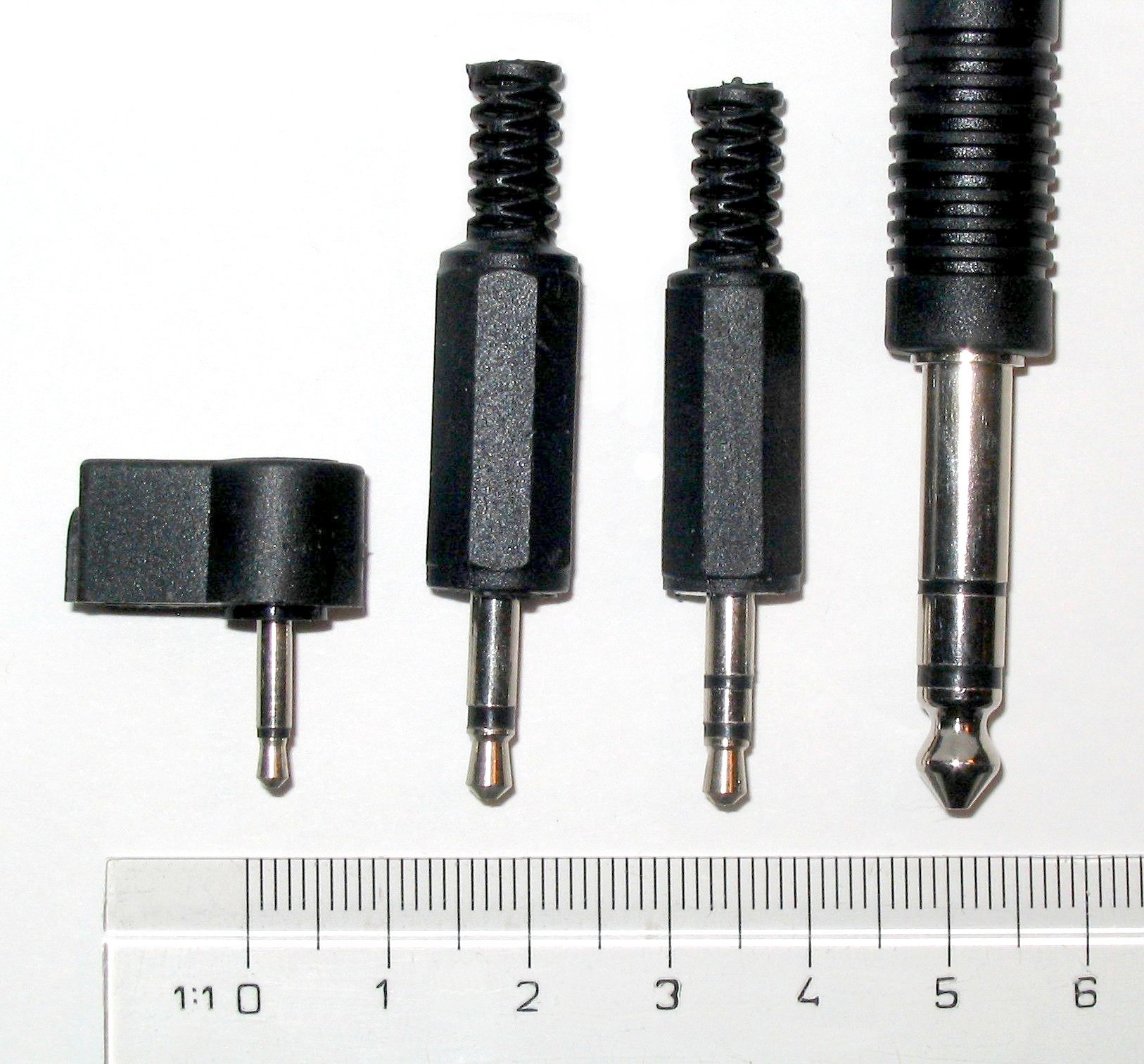
There are various sizes for audio cables. From left to right these are:
- 2.5 mm mono
- 3.5 mm (aka 1/8" or mini) mono and stereo
- 6.3 mm (aka 1/4") stereo

You can tell if it's mono or stereo by the number of rings on the jack: one = mono signal and two = stereo signal.
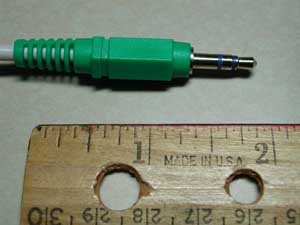


To bring your recorded audio in to the computer, it is necessary that you have a cable with two 1/8" jacks at both ends. This is an analog, not digital connection. It can be used with both cassette tape and mini-disc.


The jack on left is the 1/8-inch stereo audio input jack, which allows you to connect any audio source directly to the Mac, including a microphone. After you connect, you will need to press play on your tape player. Then press the RECORD button in the Audacity interface, and you will see the audio signal visibly as a track.

The jack on the right is for output only.

23 January 2007

making sure Audacity works for you

Tutorials due for Wed/Th: http://www.edhsonline.org/other/audacity/
Always work from the desktop, not from your flash drive and never from the G-drive.

CLICK ON PHOTO TO ENLARGE.1- BEFORE you open Audacity, trash your preferences. This means that you will remove any settings and configurations from previous work sessions, so that you can start with a clean slate every time. Go to your HOME directory > LIBRARY > PREFERENCES > Audacity Preferences. It is a stand-alone file. Send it to the TRASH! (See above screen capture image for an illustration of the path).

2- Open Audacity directly from the applications folder, not from the dock and not by double clicking on your project file. Then open your .aup file through FILE > OPEN.

3- CLICK ON PHOTO TO ENLARGE.
Before working in Audacity, EVERYTIME YOU OPEN THE PROGRAM, you need to set your scratch disks. This process tells the program where you will be storing your work files. Go to PREFERENCES > DIRECTORY and choose the FOLDER that you created on the DESKTOP for your project. You may have to restart the program, but you will not have to re-set the scratch disks until the next time you log on.

4- Save early and often.
5- Check the forums for advice

When you record:
++ Remember, you will need a stereo mic and a stereo XLR-mini adaptor when you check out a microphone from Media Services.

15 January 2007

weeks 1-2 schedule

16/17 Jan
-in-class: Q&A, lab intro
-set up a Blogger account
-make sure you can access Blackboard & log-in to MACs

18 Jan (MON-WED section will do these next week!)
-HW: be prepared for quiz on the syllabus
-in-class: hardware and OS basics

22/23 Jan
-HW: read Bourriaud article (check back for PDF to download), write response in your blog, make sure you have purchased your storage media (at least 1GB on USB flash drive), reply to e-mail to become a member of the class blog
-in-class: Audacity demo, intro to project & exercise 1

24/25 Jan
WED: 4:30 Artist Lecture by MELISSA DEAN, Boyden Gallery in Monty
-HW: Audacity tutorial at http://www.edhsonline.org/other/audacity/
-in-class: work on exercise 1, audio cut-up